


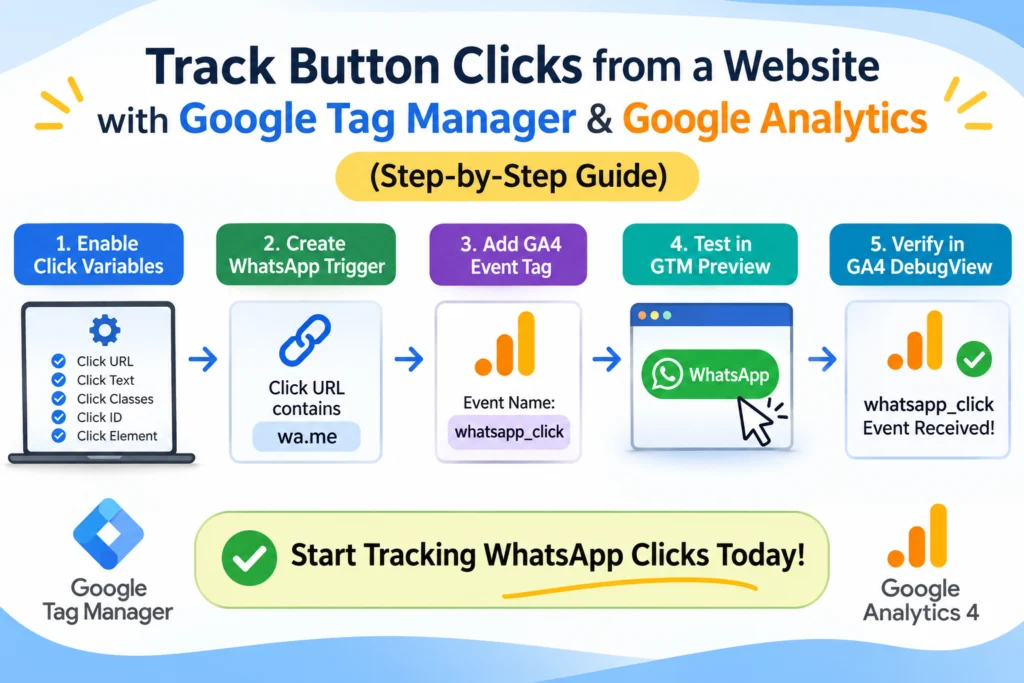
Key Takeaway
Imagine a visitor lands on your website, finds your WhatsApp contact button, and clicks it to enquire about your services. Do you know how often visitors take this action? Without proper tracking, you may see website traffic in Google Analytics but still struggle to measure how many visitors try to contact your business.
Learning to track button clicks from a website helps you understand visitor behaviour and measure important interactions. Google Tag Manager (GTM) and Google Analytics 4 (GA4) make this possible without manually adding tracking code to every button.
In this guide, you will learn how to track WhatsApp button clicks, understand why each configuration step matters, and verify that your tracking setup works correctly.
Why Should You Track WhatsApp Button Clicks?
A WhatsApp button provides a direct communication channel between your business and potential customers. However, website traffic alone does not tell you whether visitors are interested enough to contact you.
When you track button clicks from a website, you can:
- Measure engagement: Find out how often visitors click your WhatsApp contact link.
- Identify useful pages: Understand which landing pages encourage more contact attempts.
- Evaluate marketing performance: Compare engagement from different traffic sources.
- Improve conversion opportunities: Use interaction data to identify pages that may need better calls to action.
Remember that a WhatsApp click is not a confirmed enquiry. It only indicates that someone clicked the link to open WhatsApp; it does not prove that the person sent a message or became a customer.
For businesses investing in SEO services in Kolkata, tracking WhatsApp button clicks can help measure website engagement alongside organic traffic and search visibility. By understanding which pages encourage visitors to contact your business, you can identify opportunities to improve the user experience and generate more enquiries.
What Do Google Tag Manager and GA4 Do?
Before starting, it helps to understand the role of each tool.
- Google Tag Manager: Detects interactions through triggers and sends data through configured tags.
- Google Analytics 4: Receives and reports the events sent from your website.
- Tag Assistant: Helps you test whether your GTM tags fire when expected.
- GA4 DebugView: Lets you inspect events received during a debugging session.
Think of GTM as the system that detects and sends an interaction, while GA4 is the system that collects and reports it.
How to Track Button Clicks from a Website Using GTM and GA4
Step 1: Open Your Google Tag Manager Container
Visit Google Tag Manager and select the container connected to your website.
Why is this necessary?
Your GTM container holds the tags, triggers, and variables used to measure website interactions. Selecting the correct container ensures that you configure tracking for the intended website.
If GTM is not installed on your website, install it and confirm that it is working before proceeding.
Step 2: Enable the Required Click Variables
In GTM, go to Variables and click Configure under Built-In Variables.
Under the Clicks section, enable:
- Click URL
- Click Text
- Click Classes
- Click ID
- Click Element
Why do you need these variables?
GTM needs information about the element a visitor clicks to decide whether an interaction matches your tracking rules.
For example, Click URL can reveal whether the visitor clicked a WhatsApp link. Click Text and Click Classes can help identify the button when troubleshooting.
These variables provide the information that your trigger will use in the next step.
Step 3: Create a WhatsApp Click Trigger
In GTM, open Triggers → New.
- Name the trigger WhatsApp Click Trigger.
- Click Trigger Configuration.
- Select Just Links.
- Choose Some Link Clicks.
- Set the condition to:
- Variable: Click URL
- Condition: contains
- Value: wa.me
- Save the trigger.
Why use this configuration?
A trigger tells GTM when a tag should run. Selecting Just Links makes the trigger listen for link clicks, while Some Link Clicks allows you to restrict tracking to links matching a specific condition.
The wa.me condition helps distinguish WhatsApp links from unrelated links, such as links to your blog or social media profiles.
If your website uses another WhatsApp URL format, such as api.whatsapp.com, adjust the condition to match the actual link. Otherwise, the trigger may miss valid WhatsApp clicks.
Step 4: Create a GA4 Event Tag
Now go to Tags → New.
- Name the tag GA4 – WhatsApp Click.
- Open Tag Configuration.
- Select Google Analytics: GA4 Event, or the equivalent GA4 event option in your GTM interface.
- Select your existing Google tag or provide the correct GA4 Measurement ID, depending on the available configuration.
- Enter the event name whatsapp_click.
- Under Triggering, select WhatsApp Click Trigger.
- Save the tag.
Why is this step important?
The trigger identifies when a WhatsApp link is clicked, but the event tag tells GA4 what interaction to record.
The event name whatsapp_click makes the interaction easy to identify in reports. Connecting the tag to the trigger ensures that it runs when the defined click condition is met.
Use your existing GA4 configuration rather than installing a duplicate Google tag, which could lead to unnecessary or duplicate data collection.
Step 5: Test Your Configuration in GTM Preview
Before publishing your changes, click Preview in GTM.
- Enter your website URL and connect Tag Assistant.
- Open a page containing the WhatsApp button.
- Click the button once.
- Return to Tag Assistant.
- Select the relevant click event in the event timeline.
- Open the Tags tab and inspect the result.
Look for GA4 – WhatsApp Click under Tags Fired.
Why should you test before publishing?
A saved tag may still contain an incorrect trigger, a mismatched URL condition, or the wrong GA4 configuration. Preview mode lets you identify these problems before making the changes live.
If the tag appears under Tags Not Fired, inspect the Click URL variable. Confirm that its value contains the text specified in your trigger.
Step 6: Publish Your GTM Changes
Once the tag fires correctly in Preview mode:
- Return to your GTM workspace.
- Click Submit.
- Enter a descriptive version name, such as WhatsApp Click Tracking.
- Publish the container.
Why is publishing required?
Changes saved in your workspace are not automatically available to ordinary website visitors. Publishing makes the updated container available on the live website.
If you skip this step, you may see the event working in Preview but not for regular visitors.
How to Verify WhatsApp Click Tracking in GA4 DebugView
Step 7: Open GA4 DebugView
Open Google Analytics and select the correct GA4 property.
Navigate to Admin → Data display → DebugView. The exact menu labels may vary slightly depending on your interface.
Keep DebugView open while your GTM Preview session is connected. Click the WhatsApp button again on your website.
Look for the whatsapp_click event in the event timeline.
Why check DebugView?
GTM Preview confirms whether the tag fired. DebugView provides a separate check that GA4 received the event during debugging.
If the event appears, click it to inspect its available parameters. If it is missing, verify that the GTM tag fired, the Measurement ID is correct, and the debugging session is active.
Step 8: Cross-Check the Event in Realtime
In GA4, open Reports → Realtime and look for whatsapp_click in the event list.
Why check Realtime as well?
Realtime provides an additional check that the event is reaching the GA4 property. DebugView is particularly useful for debugging, while Realtime helps you observe recent activity.
New events may take time to appear in standard reports, so do not rely only on those reports immediately after setup.
Common Problems When Tracking WhatsApp Clicks
- The tag does not fire: Check whether the Click URL condition matches your website’s actual WhatsApp link.
- GTM shows the tag fired, but GA4 has no event: Verify the Measurement ID and check whether the event appears in DebugView.
- DebugView is empty: Confirm that debugging is active and that your event tag fired during the session.
- Events are duplicated: Look for duplicate tags, multiple GTM installations, or overlapping triggers.
- Clicks do not match actual enquiries: Remember that clicking a WhatsApp button does not confirm that a message was sent.
Frequently Asked Questions
Can I track button clicks without coding?
Yes. GTM can track many standard link clicks using built-in variables, triggers, and event tags. Custom buttons that do not use normal links may require a different configuration.
What event name should I use for WhatsApp clicks?
You can use whatsapp_click as a descriptive custom event name. Use the same spelling consistently in your GTM tag and GA4 reporting.
Does a WhatsApp click count as a conversion?
Not automatically. A click measures an attempt to open WhatsApp, not a confirmed conversation. You can mark the event as a GA4 key event if it is useful to your business, but interpret it as a contact attempt rather than a completed lead.
Why should I use DebugView instead of checking only reports?
DebugView helps you inspect events during testing and diagnose configuration problems. Standard reports may take longer to process new events, so DebugView is useful when validating a new setup.
Learning to track button clicks from a website helps you understand how visitors interact with your business. By combining Google Tag Manager and GA4, you can detect WhatsApp link clicks, send them as events, test your configuration in Tag Assistant, and confirm receipt in DebugView.
The key is to understand why each step matters: variables provide click information, triggers identify the interaction, tags send the event, and GA4 reports the collected data. Test the complete setup before publishing, and remember that a WhatsApp click is not the same as a confirmed enquiry.
 Mobile App Vs Website: What’s Better for Business Growth?
Not sure whether to build a mobile app or website? Compare cost, ROI, and growth potential to choose...
Read article →
 How a Tutor in Salt Lake Got 25 Leads Using a Website + Google Ads
Discover how tutors in Salt Lake, Kolkata generate 25+ leads monthly using simple websites, Google Ads, and local...
Read article →
 Why Is My Website Getting Traffic but No Leads? 10 Reasons & Fixes
Getting website traffic but no leads? Learn 10 common reasons visitors don’t enquire, how to diagnose them in...
Read article →